Properties
Add the values each record of an object keeps, choose who sees each one and what AI may do with it, and read a value's history.
Availability: Available on every plan. Keep encrypted is on Enterprise only. Compare plans
Who can do this: Owners and Admins, or a role with Organization settings.
A property is one value every record of an object holds, such as a deal's stage or a visit's date. Built-in objects come with theirs, and you add your own to any object, built in or yours.
Create a property#
Open Properties#
Go to Settings > Data > Properties and pick the object under Object. For an object of your own, Manage properties in Settings > Data > Custom objects opens the same page.
Fill in the basics#
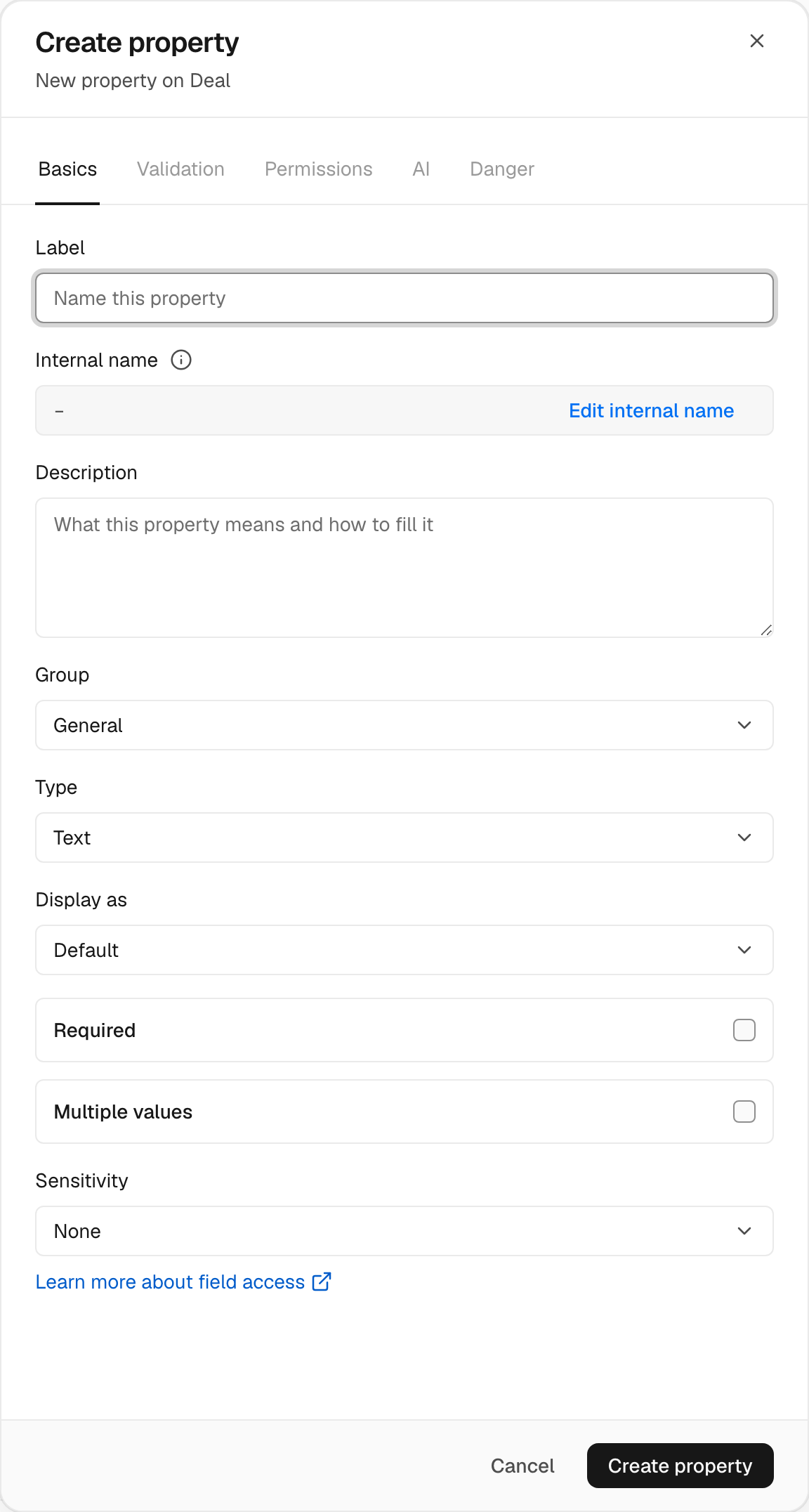
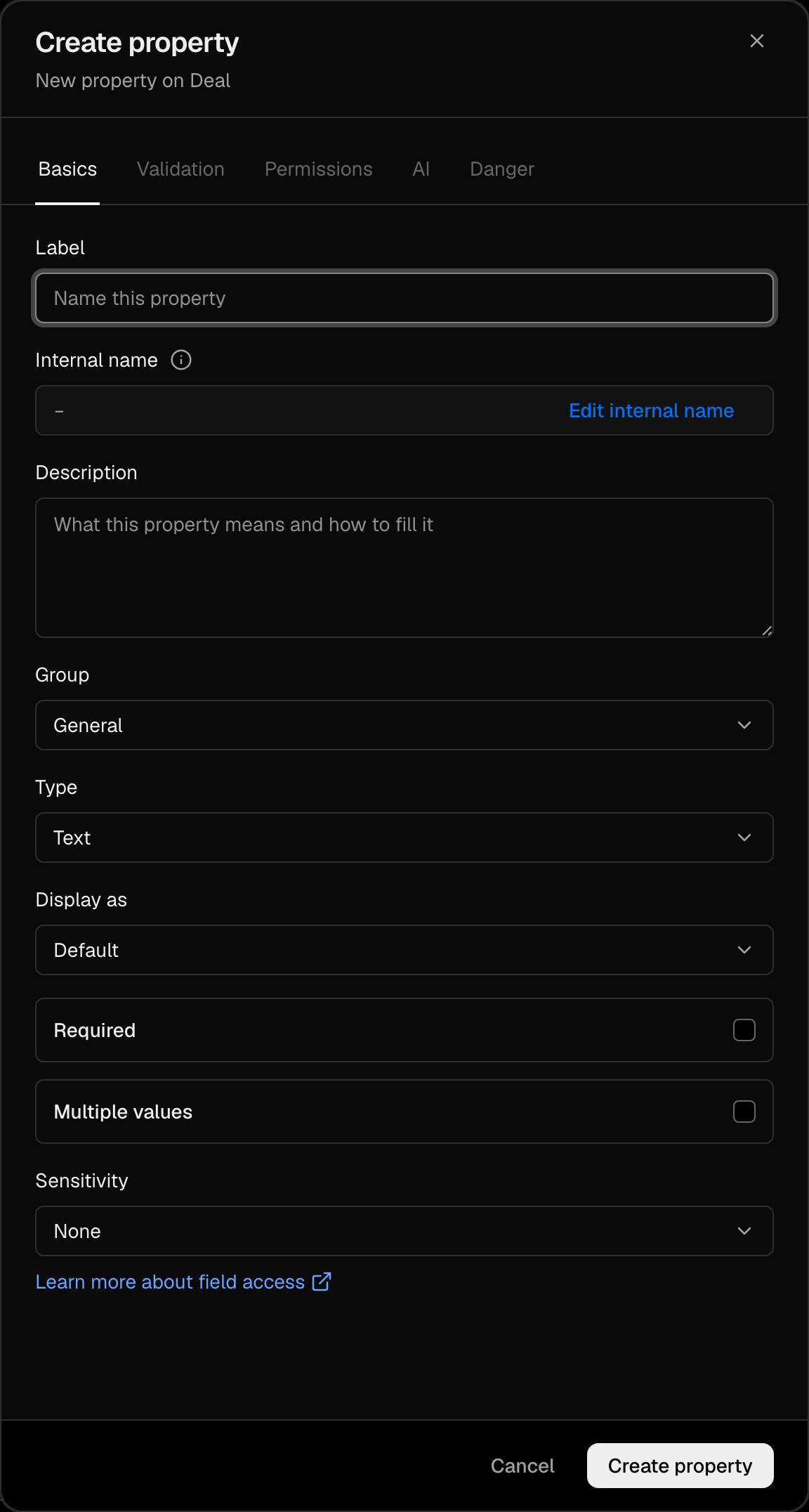
Choose Create property, then fill in:
- Label, the name people see;
- Internal name, filled in from the label: the name formulas and the API use. It can't change after you create the property;
- Description, what the property means and how to fill it;
- Group, where it stands on the record, or New group…;
- Type, from the table below.
Set what it takes#
Tick Required if a record cannot be saved without it, and Multiple values if it holds a list. Multiple values can't change later. For a Select, add each choice on Options.
Create it#
Choose Create property. Validation, Permissions, AI and Danger open once it exists.
An object holds up to 200 properties of your own. Built-in and archived ones do not count.
Property types#
| Type | Holds |
|---|---|
| Text | A name, a code, a short note |
| Long text | A description of several paragraphs |
| Number | Hours, a count, a measure |
| Currency | An amount with its currency |
| Date | A day |
| Date & time | A moment, to the minute |
| Select | One choice from your list, or several with Multiple values |
| Checkbox | Yes or no |
| URL | A link |
| An email address | |
| Phone | A phone number |
| Identifier | A registration or tax number, checked against its Scheme |
| Address | A postal address, part by part |
| Files | Up to ten files |
| User | A member of your organization |
| Record reference | A record of another object |
| Formula | A value worked out from the record: see Formulas |
| Rollup | A count or total over linked records: see Formulas |
Multiple values works for Text, Number, Select, Email, Phone, URL, User and Record reference. A built-in property keeps its type and validation; you can still rename, regroup and reorder it.
Unique values are set through the Agent or the API, over one to four properties, and refused while duplicates exist. Such a property shows Unique in the list.
Who sees a property#
- Sensitivity: None, PII, Sensitive or Highly sensitive. It only goes up, never down. An address starts at PII.
- A property at PII or above starts masked for the Viewer role. Reading a Sensitive or Highly sensitive value is written to the audit log.
- Permissions sets field access per role: Edit, View, Masked or Hidden. It holds in lists, search, exports and the Agent too. See Access and sharing.
- Cost on a number or an amount: only roles with See costs and margins read it.
- Keep encrypted (Enterprise, with Sensitive data on in Settings > Members and access > Security): sealed values can't be sorted, range-filtered, summed or read by AI, and the mark can't be removed.
What AI may do#
On the AI tab, What AI may do decides how the Agent, Fill from activities, agents and AI workflow steps treat the property:
| Choice | What happens |
|---|---|
| Default | The Agent changes it when you could, except an amount, an address or a status, which it proposes on a card. Agents and workflows suggest a value someone approves. |
| Never change it | No AI writes it, not even on a card. |
| Propose a change | Every AI value waits on a card for a person. |
| Change it | AI writes it. The Agent still follows your autonomy mode. |
How to fill it from activities is an instruction AI follows to fill the property from a record's emails, calls, meetings and notes. Fill existing records then runs it on every record where the property is empty, at a cost in AI credits.
Value history#
On a record, point at a property and choose its history button. Value history lists every value it held: the value before, who changed it, from where and when. Restore brings an earlier value back, and the restore is in the history too. A masked value stays masked there.
Change a property's type#
The screen does not change a saved property's type. Ask the Agent, or call property.retype through the API. It first rehearses the change and reports what converts, what ends up empty and what the new type does not take. Then it archives the old property with every value and gives the new one its name, label, group and access.
It converts text, long text, email, phone, URL and identifier among themselves; text to a number, an amount, a date or a select; anything to text; a number to an amount and back; a date to a date and time and back; a single select to multiple values and back.
It refuses formulas, rollups and record references, built-in properties, encrypted ones, and one a rule, formula, rollup or workflow reads until that is changed.
Archive or delete#
On Danger, Archive property hides it from forms, tables and pickers and keeps its values, so you can restore it. Delete property deletes every value for good, and is refused while a report, rule, formula or rollup still needs it.