Objects
Add a kind of record your business keeps, such as service visits, with its own list, record pages and properties, beside the built-in ones.
Availability: Available on Pro, Business and Enterprise, and during the 14-day trial. Compare plans
Who can do this: Owners and Admins, or a role with Organization settings.
An object is a kind of record. SalexHub comes with its own, such as contacts, companies, deals, products and quotes. You add the ones your business needs, such as service visits or vehicles, and they work like the built-in ones: a list, a page for each record, properties, and the Agent.
Create an object#
Open Custom objects#
Go to Settings > Data > Custom objects and choose New object.
Name it#
Fill in Name (singular), such as Service visit, and Name (plural), such as Service visits. Leave the plural empty and it is made from the singular.
Choose its icon and place#
Pick an Icon. Under Part of the business, choose At the root or a module's shelf, such as Sales. On a module's shelf it shows only while that module is on.
Create it#
Keep Show in the sidebar ticked so the object is in the menu for everyone who may open it, then choose Create object.
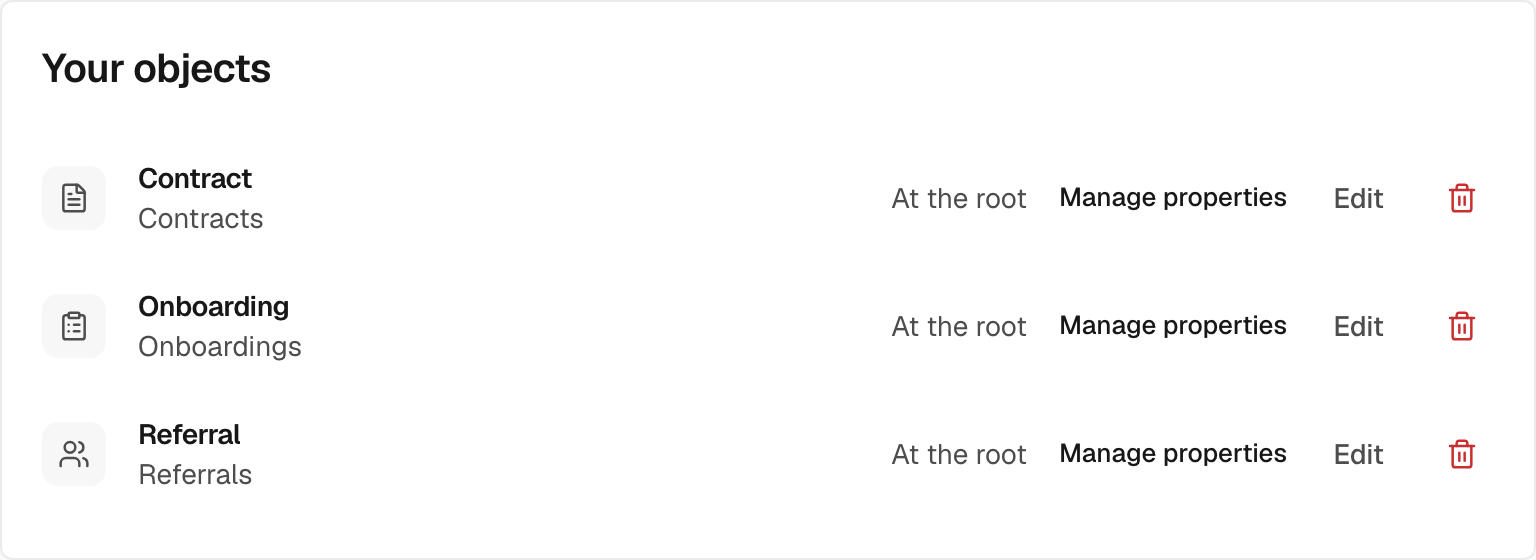
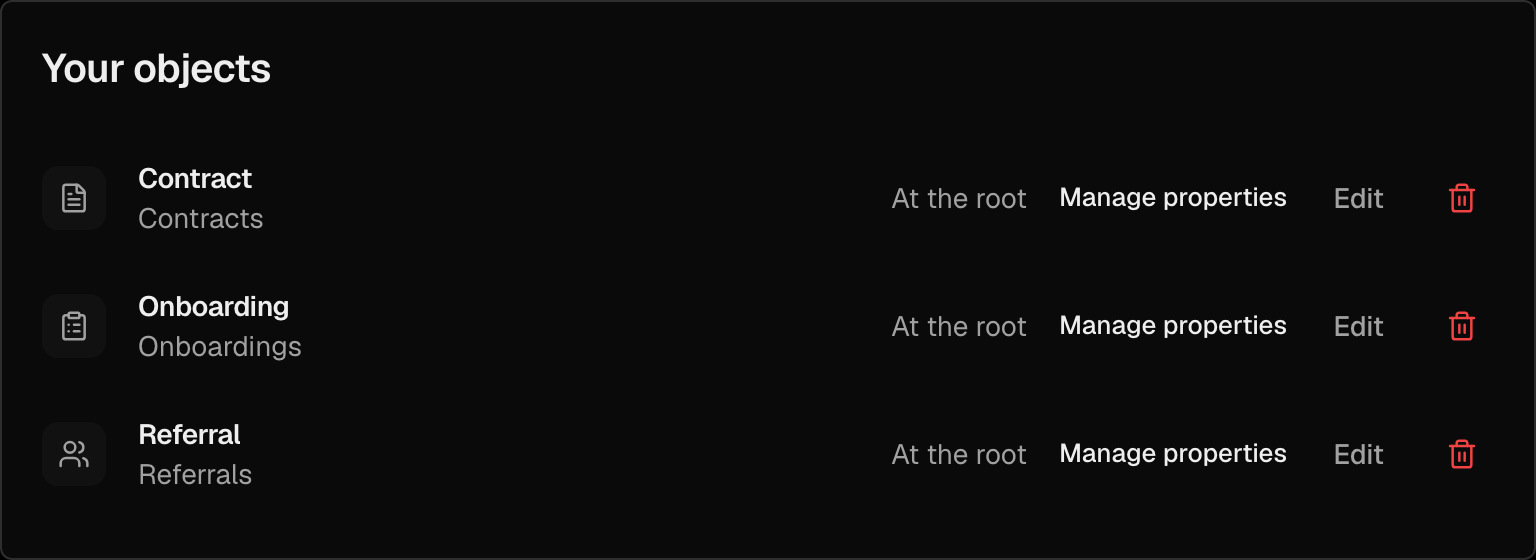
A new object starts with one required property, Name. Choose Manage properties on its row to add the rest: see Properties.
Tip: You can also ask the Agent: "Add vehicles with a plate number, the next service date and the driver." It proposes the object and its properties on a card to approve, unless your organization runs in Full autonomy.
What an object of your own gets#
| Table | Always: its records open as a table, with saved views. |
| Board | Once it has a pipeline, made in Settings > Data > Pipelines. The default pipeline's stages are the columns. |
| Calendar, agenda, timeline | Not offered on an object of your own. |
| Record page | Its properties, and its links to other records under Related: see Relationships. |
Change, archive or delete#
- Edit on the object's row changes its names, icon, place in the menu and Show in the sidebar.
- Archive (the bin on its row) takes it out of the menu for everyone. Its records, properties and relationships are kept but out of reach, and the dialog lists what stops working meanwhile.
- Show archived objects lists the archive, where you Restore an object as it was.
- Delete there removes an archived object for good, with its properties, saved views, relationships and access rules. It is refused while the object holds records or anything else uses it, and you type a phrase to confirm.
Built-in objects cannot be archived or deleted. Kinds of activity, such as a call or a site inspection on a record's timeline, are made in Settings > Data > Activities, not here.
Limits#
| Plan | Objects of your own |
|---|---|
| Free | None |
| Pro | 3 |
| Business | 10 |
| Enterprise | As many as the contract sets |
Archived objects do not count, so restoring one needs room on your plan. At the limit, Create object is refused with the plan that holds more, and the objects you have stay editable. Each object holds up to 200 properties of your own.