Activities
Read and filter what happened on a record, log calls and meetings, add activity types of your own, comment, and catch up on what you missed.
Availability: Available on every plan. A summary spends AI credits, and on Free the Agent reads the last 30 days of activity on a record. Compare plans
Who can do this: Anyone who can see a record can read and comment on its timeline. Owners and Admins, or a role with Organization settings, make activity types.
An activity is something that happened with a customer: an email, a call, a meeting. Each one is filed on the records it concerns and shows on their timeline, newest first, with notes, tasks and the changes made to the record.
Read the timeline#
Open a record and choose Activity. The Timeline shows everything on it. The pills narrow it:
| Pill | Shows |
|---|---|
| All | Everything |
| Communication | Calls, emails, meetings and messages, with how many, and a pill for each kind |
| Tasks | Tasks, with how many are open or upcoming |
| Changes | The changes made to the record's properties |
Communication and Tasks appear where the record can have them. The Filter activities box searches the entries that are loaded; Load more brings in older ones.
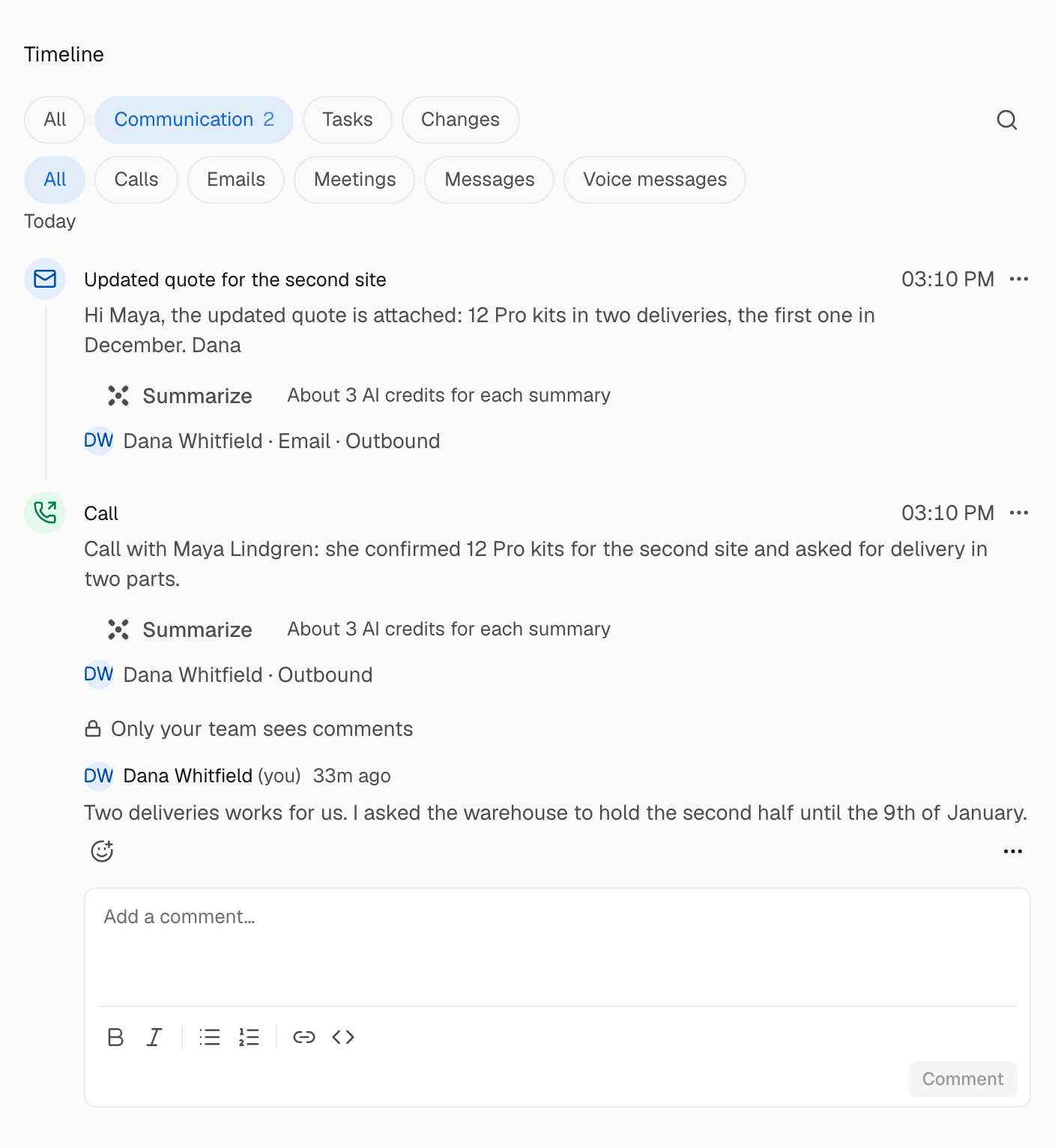
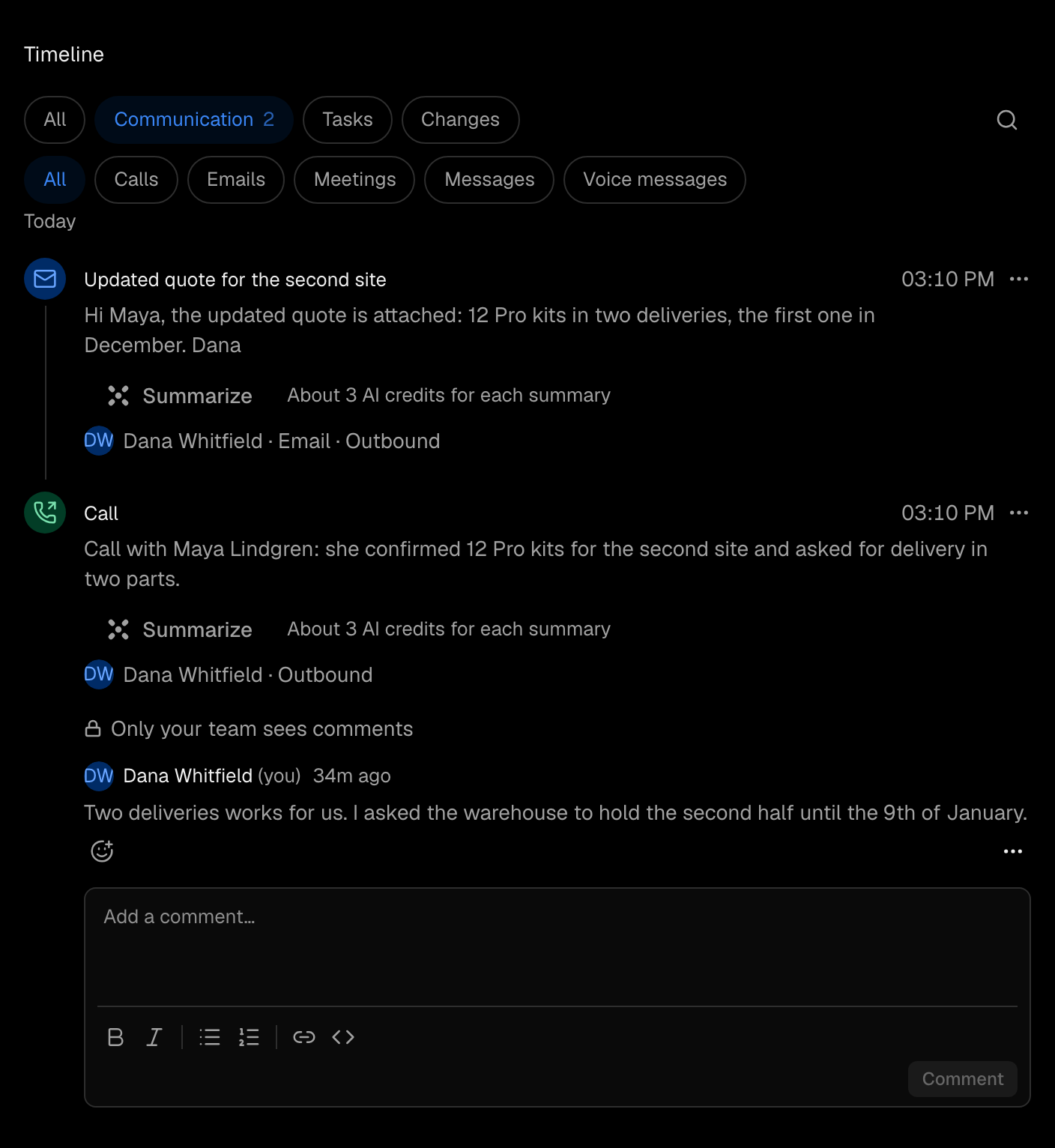
The menu on an entry, Entry actions, offers Comment, Pin to top, Copy link and History. A pinned entry stays on top under Pinned. A sent or captured email can't be edited.
An activity shows on every record it is attached to, so a call logged on a contact and its deal appears on both.
Log an activity#
Choose the type#
On the timeline, Log activity has one button for each type the record can have, such as Call, Meeting, Note or Task.
Fill it in#
Fill in the form that opens. Its fields are the type's properties.
Save it#
Choose the save button, which reads Save and the type's name.
Logging an email records one that already happened somewhere else.
Make an activity type of your own#
Add a type for what your business does with customers, such as a demo.
Open Activities#
Go to Settings > Data > Activities and choose New activity type.
Name it#
Fill in Name (singular), such as Demo, and Name (plural), then choose Create activity type.
Link it to the records it is about#
On its row choose Manage properties, then Create property. Choose the type Record reference and a Target object, such as Contact. See Properties.
The type shows on the timeline of a record only through a Record reference property that points at that kind of record. Add one for each kind, such as Contact and Company, and Log activity offers it there. Types of your own do not count toward the limit of objects of your own.
Comment#
Choose Comment on an entry, write under Add a comment, and choose Comment. A comment takes Reply one level deep. Add a reaction offers eight: thumbs up, thumbs down, laugh, hooray, confused, heart, rocket and eyes. Only a person reacts.
Resolve closes a discussion: it folds to Resolved by a name, with Show and Hide, and Reopen brings it back. Only the author edits or deletes a comment. Anyone who can see the record can comment.
Catch up#
Above the timeline, Since you last looked counts what others did since your previous visit, such as Emails 2, Comments and Changes, and how many conversations wait for your reply. It does not appear until you have opened the record once, and Hide this removes it. Before your last visit marks where you stopped reading.
The counts are free. Summarize asks the Agent to say in a few sentences what it all came to. It writes nothing to the record, and the line shows its cost in AI credits.
Summaries#
On an email, message, call or meeting, Summarize writes a short summary on the entry: what was asked, what was agreed and what is still open, in at most five sentences, marked Written by the Agent. For an email or a message it reads the whole conversation, up to 50 items. Each summary spends AI credits, shown on the entry.
Summarize again after more arrives, or Edit to change the words. A new summary replaces the old one, including one a person wrote, and undoing it brings the earlier one back.
To summarize long conversations on their own, an admin turns on Summarize long conversations under Settings > Agent and AI > Agent. It is off by default. With it on, an email thread or chat of 6 or more items is summarized again after each new one, and every summary spends credits.
Who sees what#
- Anyone who can see a record sees the entries on its timeline.
- An entry's text, such as an email body or a note, shows only to people who can see the record it is mainly filed on.
- Mail from a mailbox set to Only me, under Settings > Account > Email, is its owner's alone, admins included.
See Access.
What the Agent does#
It reads a record's timeline, including the activity on a company's contacts and deals, to answer where you left off. It writes comments as your autonomy mode allows, and never reacts. Resolving or deleting a comment, writing a summary and adding an activity type are each a card to approve, unless the mode is Full autonomy.
Two things stay with a person: the Summarize on Since you last looked, and the setting for summarizing long conversations.
Limits#
On Free, the Agent reads the last 30 days of emails, messages, calls and meetings on a record. Older ones are kept in full, and notes and tasks never age out. Pro and above read the whole history.