Connect an AI provider
The Agent runs on paid AI credits or your own AI provider key: which providers work, how to add a key, which models it opens, and what it spends.
On this page
The Agent runs on SalexHub's AI provider once your organization has paid for AI credits, as a credit pack or a paid plan's monthly credits, or on your organization's own AI provider key. Until it has one or the other, the Agent answers nothing, record pages show no suggestions, and an AI step in a workflow is refused. The 100 credits a new organization starts with do not open AI by themselves.
Without either, the first question in the Agent's chat gets this answer, for an Owner or Admin: "This organization has no AI key of its own and has not bought AI credits. Buy AI credits in Settings > AI Gateway > Budgets & Spend, or add a provider key in Settings > AI Gateway > Keys." Anyone else is told to ask someone with the billing permission for credits, or an admin for a key.
Add a key#
An Owner or Admin adds the key, or anyone whose role holds the settings permission. For anyone else the Keys page says they need that permission.
Open Keys#
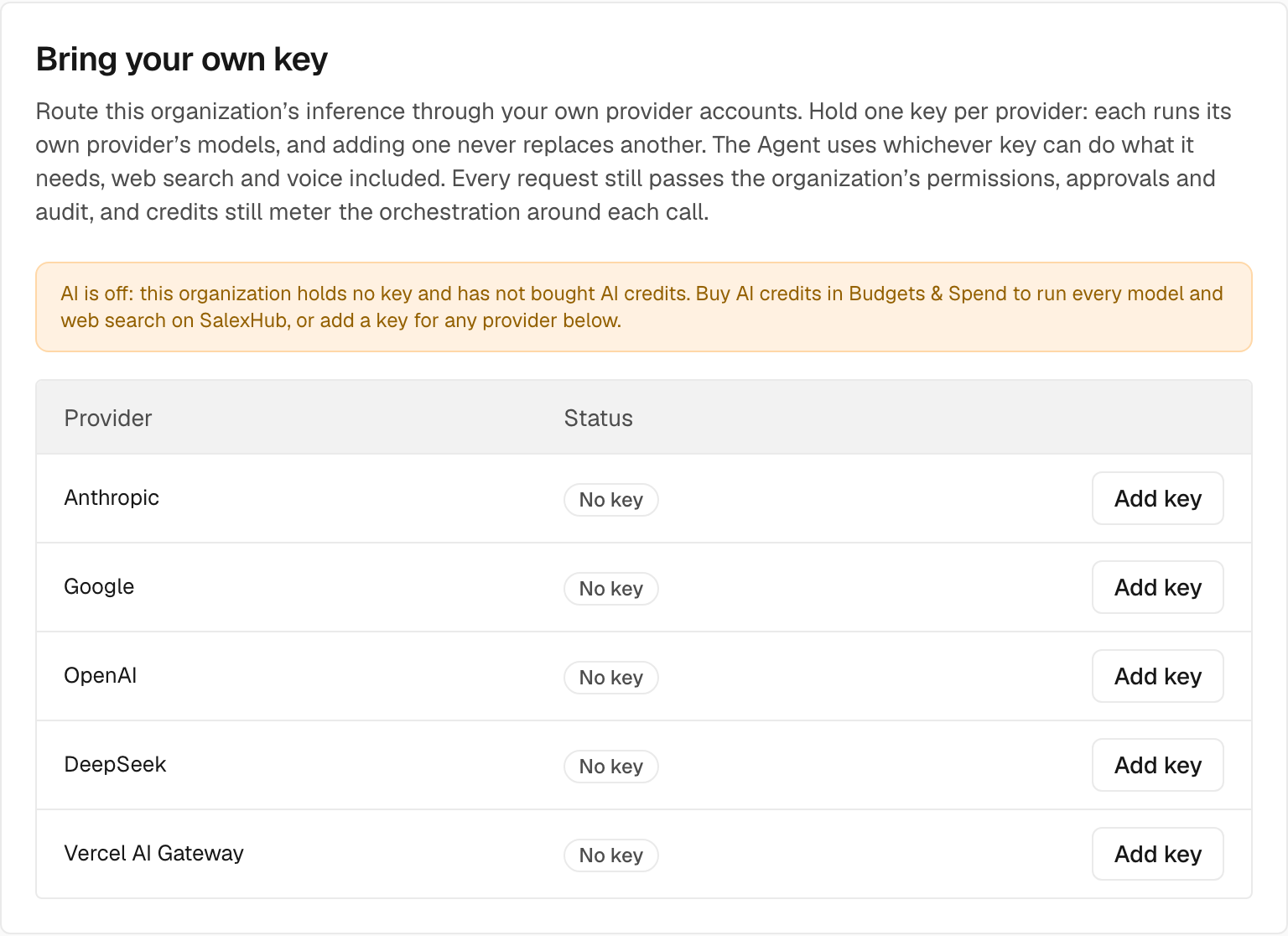
Go to Settings > AI > AI Gateway > Keys. Your provider keys are under Bring your own key. The card above it, AI Gateway API keys, is for calling SalexHub from your own code.
Choose a provider#
Pick the provider you have an account with, and choose Add key:
| Provider | What the key opens |
|---|---|
| Anthropic | Anthropic's models |
| Google's models | |
| OpenAI | OpenAI's models |
| DeepSeek | DeepSeek's models |
| Vercel AI Gateway | Every model the gateway lists, billed to your own Vercel account |
Paste the key and save#
Paste the complete key into the provider's API key field. Test key checks it without saving; Save key tests it too, and refuses a key the provider rejects. The key is stored encrypted and never shown again.
When the provider accepts it, the page says so, for example "Key saved. Anthropic accepted it." The Agent works from the next question.
Note: An organization holds one key per provider, and adding one never replaces another. Each key runs its own provider's models; with paid AI credits, every other model runs on SalexHub. A provider that has a key offers Replace key and Remove key, and the other keys stay as they are. Removing the last key turns AI off for the organization, unless it has paid for AI credits.
Choose the models#
Out of the box the model choice is Auto (recommended): SalexHub picks a capable model for the Agent, a quick one for background work and one that reads images, from the models your organization can run, its own keys first. An Owner or Admin chooses Custom in Settings > AI > AI Gateway > Models to set the Agent model and the Background model. Allowlists, on the same panel, limit which providers and models may run.
Each person can also pick the model for their own questions in the Agent's composer: Model for your questions, remembered in that browser. Every answer shows the model that actually ran.
Tip: The Agent can read a public web page from its address on any model. Searching the web needs an OpenAI, Anthropic, Google or Vercel AI Gateway key, or paid AI credits: a DeepSeek key alone cannot search. Speech to text, for dictation and voice notes, needs an OpenAI or Vercel AI Gateway key, or paid AI credits.
What the Agent spends#
On SalexHub's provider, AI credits pay for each call. On your own key, the model is billed to you by your provider, and SalexHub counts AI credits for the work around each call. A new account's first organization starts with 100. When they run out, the Agent says so and stops. People with the billing permission buy more as credit packs in Settings > AI > AI Gateway > Budgets & Spend; SalexHub also adds credits against an invoice, on request at start@salexhub.com.
Settings > AI > AI Gateway > Budgets & Spend shows what was spent over the last 7, 30 or 90 days, by consumer, by model and by person, and the most expensive calls. Spending caps are not built yet, and the page says so.
Turning AI off#
Settings > AI > Agent has one switch, AI for this organization. Off, it stops the model everywhere at once: the chat, record suggestions, the site agent and scheduled runs. The switch needs the settings permission, which Owners and Admins hold out of the box.
Note: On the same page, the Availability card checks that AI can run. Without paid credits or a key it reads "no AI credits bought and no AI key of its own", with the same two fixes: AI credits in Budgets & Spend, or a key in Keys.