Bookings
Set up what people book and who or what takes it, then book appointments without double-booking a person, room or piece of equipment.
Who can do this: Owners and Admins, or a role with Organization settings, turn it on. Others work in it as their role's access to records allows.
Bookings adds services, resources and appointments. A service is what people book, a resource is the person, room or piece of equipment it takes, and an appointment is a booked time with a client.
Turn it on#
Turn Bookings on from its page in Explore modules: see Modules. Its shelf in the menu holds Services, Resources and Appointments.
Set up what people book#
Add a service#
Open Services and add one. Name is the only required property. Set Mode (Appointment or Group session), Duration, min, Buffer, min, Price with its Currency, and leave Active on while the service can be booked.
Buffer, min is the time the resource stays held after each appointment of the service, for cleaning, setup or travel.
Add a resource#
Open Resources and add the person, room or equipment that takes the booking. Name is the only required property. Set Kind (Person, Room or Equipment) and Timezone, and leave Active on.
Book an appointment#
Open the form#
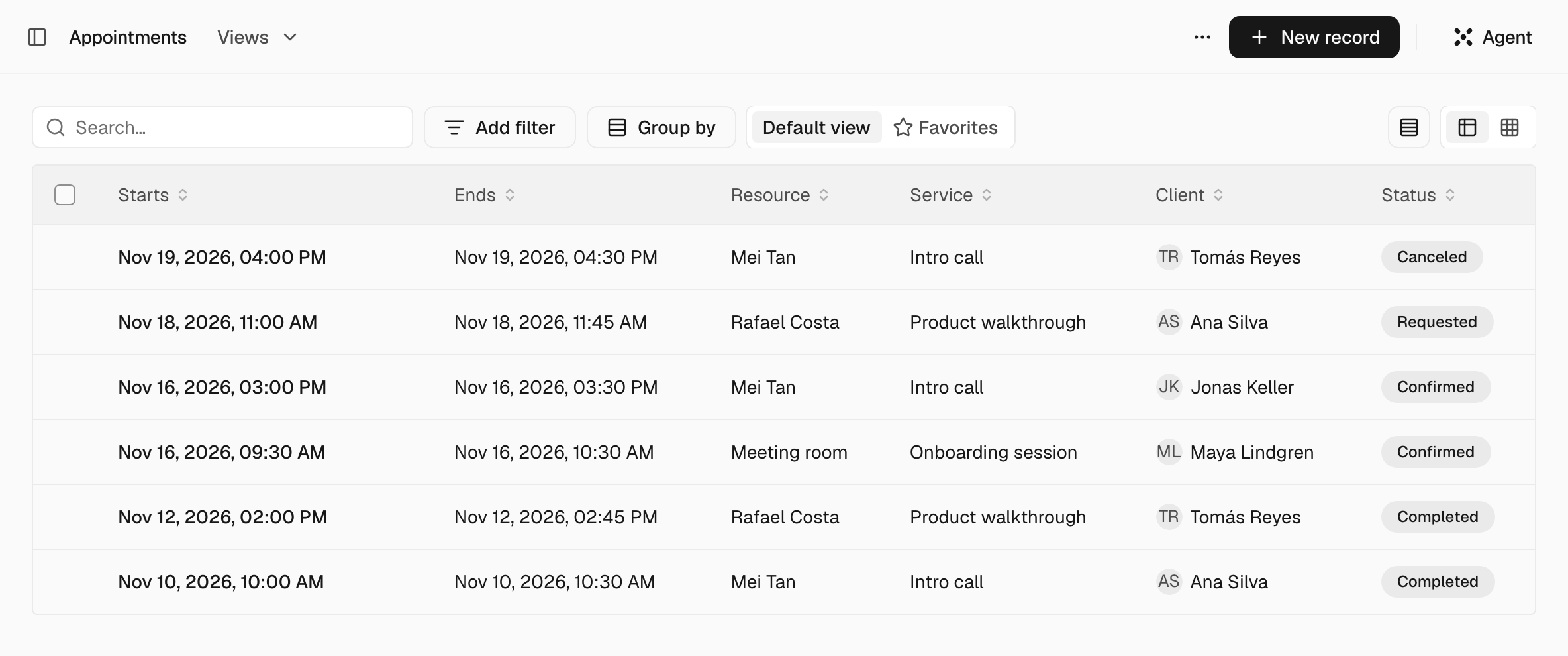
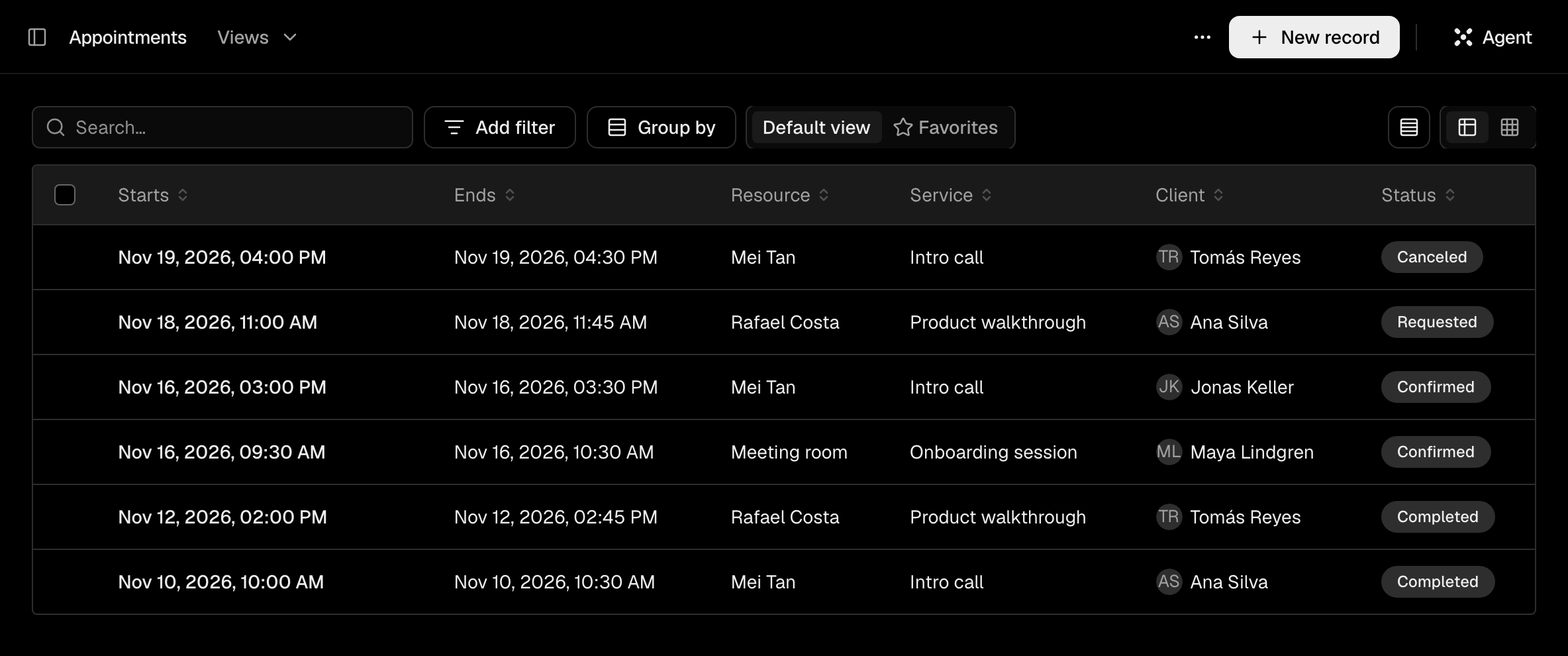
Open Appointments and add one. On a deal's Overview, people who can edit records also see Book in the Meetings card. It opens the same form with nothing filled in, so choose the Client yourself.
Fill it in#
Set Starts and Ends, and choose the Resource. Add the Service and the Client, a contact, when you have them. Notes takes anything else. A new appointment is Requested unless you choose another Status.
Save it#
The time is checked as you save: see What is checked when you save. If it fits, the appointment is booked. If it does not, the message says why and nothing is saved.
Keep the status current#
Set Status to Confirmed, Completed, Canceled or No-show as the appointment goes. Canceled and No-show free the time on the resource at once. Bringing an appointment back from either takes the time again, and is refused if someone has booked it since.
A contact's Overview lists their appointments in a Meetings card: Upcoming first, the nearest on top, then Held, the latest on top. A deal's Overview shows the same for the contacts on the deal. Upcoming and Held follow the start time alone, not Status.
What is checked when you save#
| Rule | What happens |
|---|---|
| Ends | An appointment ends after it starts. |
| Active | A service or resource that is switched off takes no new appointment and no move onto it. Appointments already on it can still be completed, canceled, annotated or moved off it. |
| Duration, min | An appointment of a service is not shorter than the service's duration. A longer one is fine. With no service there is no minimum. |
| Overlap | Two appointments never overlap on one resource, so two people saving at the same moment cannot both get the slot. A canceled or no-show appointment does not count. |
| Buffer, min | An appointment holds its resource until its end plus its own service's buffer, and its own buffer may not run into the next appointment's start. |
The buffer is checked once, when you save. Two appointments that clash only through a buffer, saved in the same instant, can both pass.
Only a change to Starts, Ends, Resource or Service, or bringing an appointment back from Canceled or No-show, is checked. Changing Notes or Client is not. Moving an appointment never clashes with itself. Times in the messages are in UTC.
Settings#
| Setting | What it does |
|---|---|
| Settings > Bookings > Setup | Lists what is done and what is missing: Services, Resources and Calendars, which is optional. For Owners and Admins. |
| Settings > Organization > Calendars | Setup counts the step as done once a calendar exists. Bookings does not read the calendar when it saves an appointment. |
What the Agent does#
- Bookings has no tools of its own. The Agent creates and edits services, resources and appointments with the record tools, and the same checks stop it from double-booking a resource.
- From Edit records up it creates and moves appointments without asking. A change to Status always waits on a card: see Autonomy and approvals.
- To find a free time it can list a resource's appointments. There are no working hours for it to go by.
Questions#
Can customers book themselves? No. The team books for them. There is no booking page, and the Agent on your website cannot take bookings.
Does it send confirmations or reminders? No. A workflow can start when an appointment is created or changes.
Can I set working hours or close holidays? No. A resource has no working hours, and a calendar's holidays do not close a day. Any time that is free is accepted.
What happens to my appointments if I switch Bookings off? Every appointment is kept and none is canceled. See Modules.