Sign-in and security
Protect your own sign-in with a passkey or an authenticator app, set the organization's sign-in rules, and connect SSO and SCIM.
Who can do this: Everyone, for their own sign-in. The organization's rules: Owners and Admins, or a role with Sign-in and API keys.
Each person protects their own sign-in. The organization can require a second factor, shorten sessions, and sign people in through its identity provider.
Turn on two-factor authentication#
In Settings > Account > Sign-in and security, under Two-factor authentication:
Add a second factor#
Choose Add a passkey and confirm with your fingerprint, face, PIN or security key. Or choose Set up authenticator app, scan the QR code, enter the 6-digit code and Turn on.
Save your recovery codes#
You get ten codes, shown only once. Each signs you in once if you lose your passkey or app. Copy codes or Download, tick I saved these codes, then Done.
Your other sessions are signed out. A passkey also signs you in on its own: Sign in with a passkey on the sign-in page. At the second step you can tick Remember this browser for 30 days.
Create new codes replaces the old ones. Removing your last factor stops your recovery codes.
Your password and sessions#
On the same page:
- Change password: at least 15 characters, or 8 once you have a second factor. Your other sessions are signed out.
- Sessions lists where you are signed in. Sign out ends one; Sign out of other sign-ins ends the rest.
If you lose your second factor#
Use a recovery code at the second step. With none left, choose Help signing in:
- A link goes to your email. Open it within an hour and pick the organization whose admins you ask.
- An admin finds your request in Settings > Members and access > Members, under Requests for help signing in, checks it is really you, and chooses Agree to remove their second factors.
- You get a link for 24 hours. Opening it, with your password, removes your second factors and signs you out everywhere.
Your other organizations then ask to let you back in. Their admins choose Let them back in.
Set the organization's rules#
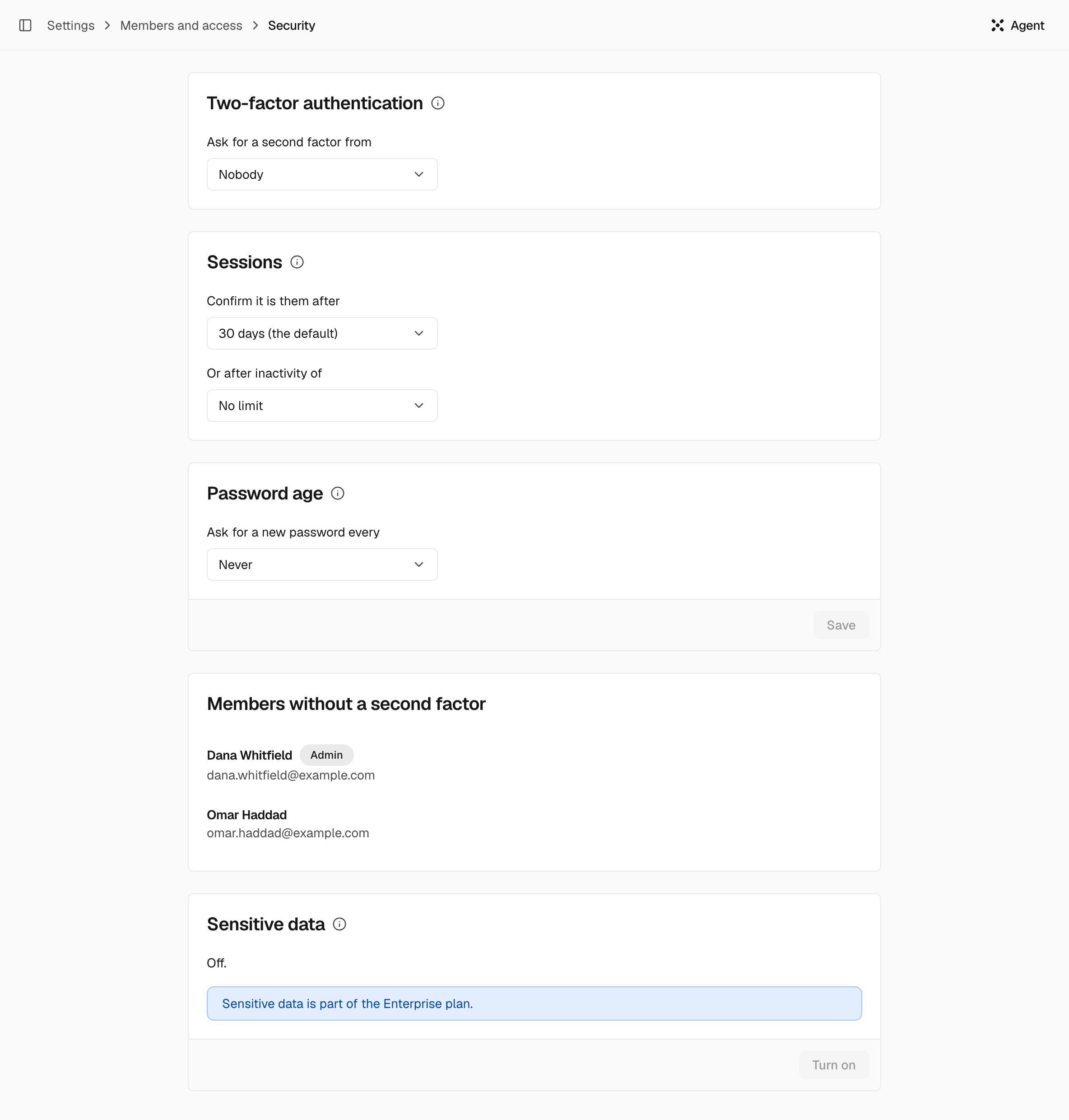
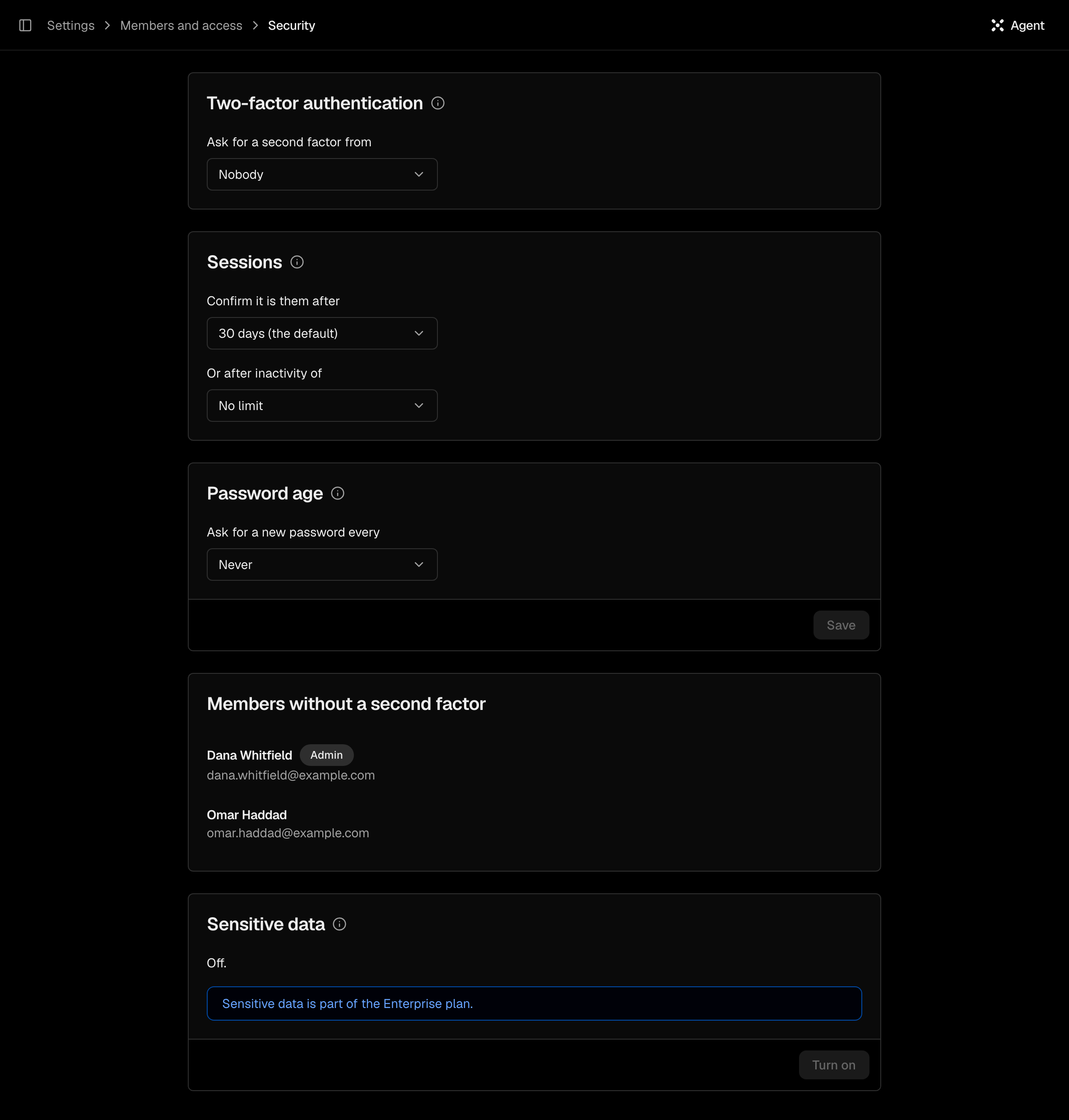
In Settings > Members and access > Security:
| Setting | Choices |
|---|---|
| Ask for a second factor from | Nobody (default), Admins or Everyone. Members it newly covers get 14 days and an email to add one |
| Confirm it is them after | 8 hours, 24 hours, 7 days, 14 days, or 30 days (default) |
| Or after inactivity of | 15, 30, 60 or 120 minutes, 8 hours, or no limit (default) |
| Ask for a new password every | Never (default), or 30 to 365 days |
To require a second factor, add one to your own account first. Members without a second factor lists who still has none.
Confirm it is you#
Acts that change who can sign in, take data out or move money ask you to Confirm it is you: with your password, a passkey, an authenticator code, a recovery code or your identity provider. You are not asked again for two hours.
SSO and provisioning#
In Settings > Members and access > SSO & Provisioning. SSO is on Business and Enterprise; SCIM is on Enterprise.
Verify a domain#
Add domain, publish the TXT record at your DNS provider, then Verify.
Connect your identity provider#
Register the redirect URI shown at your provider, then enter its Issuer, Client ID and Client secret. Only OpenID Connect is supported. Turn on Sign in through the identity provider and save.
Turn on SCIM#
Enable SCIM, copy the SCIM base URL, then Generate token. The token is shown once. Your directory then adds, updates and turns off the people of your verified domains.
People then choose Sign in with SSO. External users sign in the way their own organization requires.