Inventory
Count stock by product and location, receive goods against purchase orders, deliver against sales orders, and count and correct what is on hand.
Who can do this: Owners and Admins, or a role with Organization settings, turn it on and set up locations. Others work in it as their role allows, and only Owners and Admins post a stock adjustment or reverse a document.
Inventory adds stock. It counts each product at each location from the documents that move it: goods receipts bring goods in, deliveries take them out, and stock adjustments cover the rest.
Turn it on#
Turn Inventory on from its page in Explore modules: see Modules. Its shelf in the menu holds Stock, Goods receipts, Deliveries and Stock adjustments. Only a product whose Kind is Product is stocked: see Products.
Read the stock#
Open Stock. Each row is a product at a location, with On hand, Reserved, Available, Average cost, On order and Standing. Choose a row to see its Movements: the date, the document, the reason and the quantity of each. A product's own page has a Where it is card with the same figures.
Four tiles sit above the table. Choosing On order, To reorder or Short or below zero filters the table to them.
- On order: what confirmed purchase orders still bring, and which are late.
- To reorder: products below their reorder point, counting what is on order. See Purchasing.
- Short or below zero: balances below zero, or held by orders for more than is here.
- Stock value: what is on hand, at average cost.
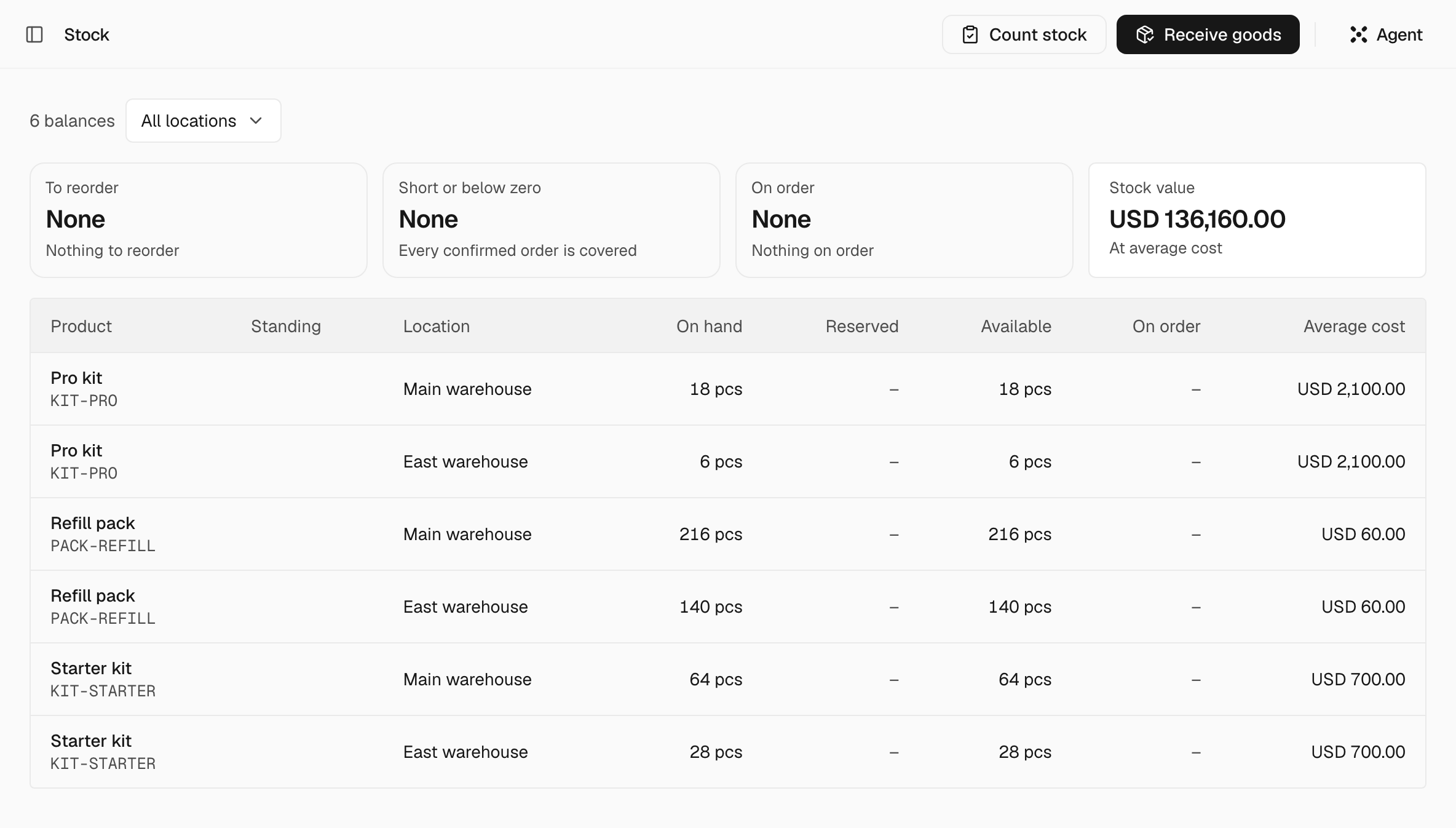
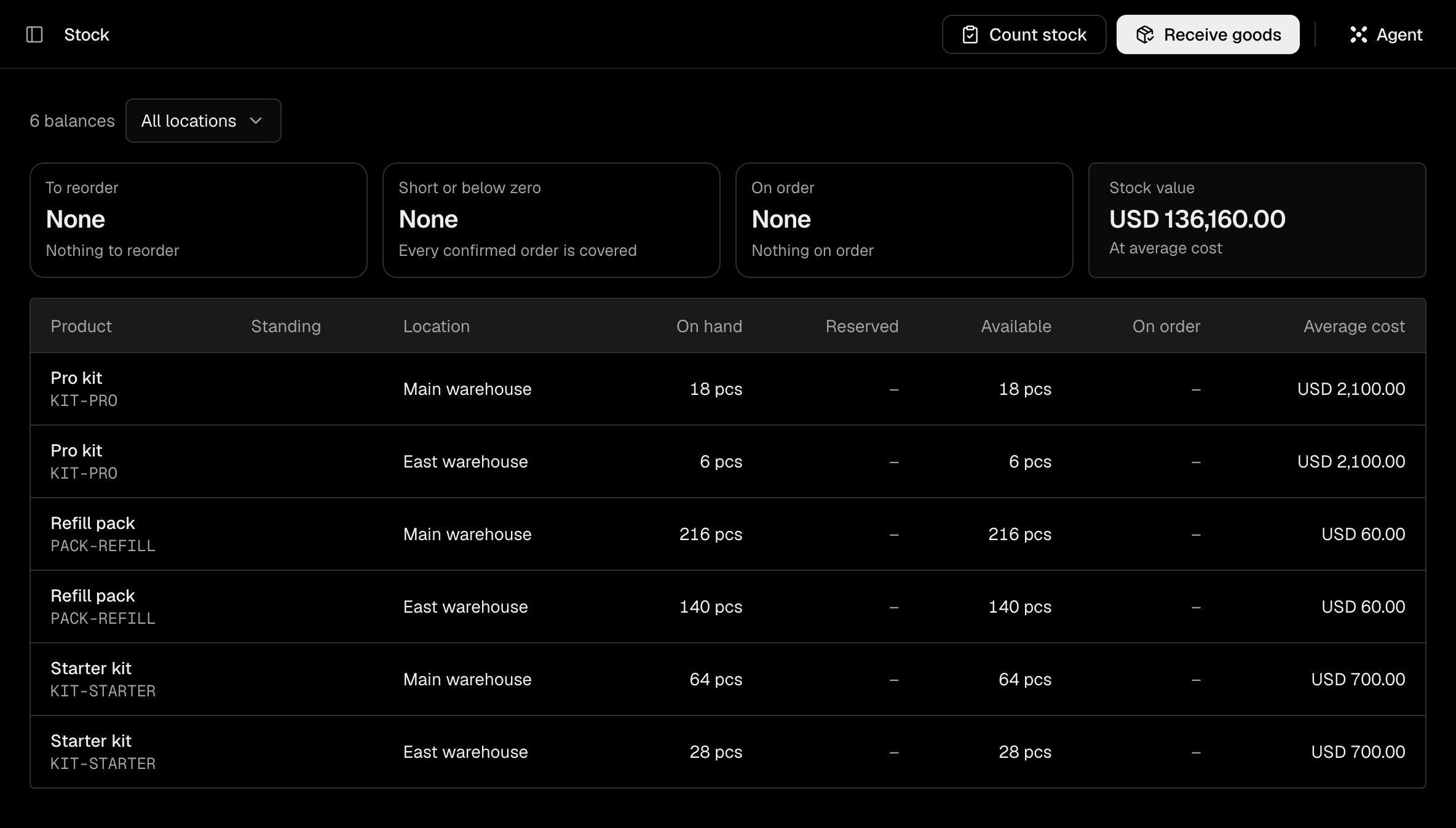
A balance is the sum of its movements. To change it, post a document: a receipt, a delivery or a count.
How orders move stock#
- A confirmed purchase order moves nothing. Its open quantity counts as On order, and the stock rises when a goods receipt is posted.
- A confirmed sales order reserves each stocked line, so Available is what is on hand less what orders hold. A delivery releases what it delivers, and closing or canceling the order releases the rest. Sales orders come from Sales.
Receive goods#
Start the receipt#
On a confirmed purchase order, choose Receive. It drafts a goods receipt with the open quantities. With no order, choose Receive goods on the Stock page.
Check the receipt#
Set Received for each line, the Location and the Receipt date, and enter the supplier's Delivery note. An empty Location is the legal entity's default. A line cannot receive more than is still open on its order line. Check the Unit cost: the Average cost is worked out from it.
Post it#
Choose Post. The receipt gets a GR number, the stock rises and the receipt is fixed. The order closes when every line is fully received.
Reverse takes a posted receipt back. It is for Owners and Admins, and the order it fulfilled is not reopened.
Deliver goods#
Start the delivery#
On a confirmed sales order, choose Deliver. It drafts a delivery with the open quantities. For goods that have no order, add one in Deliveries.
Check the delivery#
Set From location, Delivery date and Quantity, and add a Reference if you want one. An empty From location is the legal entity's default.
Deliver it#
Choose Deliver. The delivery gets a DN number, the goods leave stock at their average cost, and the order's reservation is released. A product that was never received at a cost is refused: give it one first, on a receipt or an opening adjustment.
Reverse returns the goods to stock. It is for Owners and Admins. A sales order that is still confirmed holds the goods again, and a closed or canceled one is not reopened.
Count and correct stock#
Make a count sheet#
On the Stock page, choose Count stock. Choose the Location and What to count, Every product with stock here or Products I choose, then Make count sheet. With no stock yet, Count opening stock starts an adjustment for what is already there.
Enter what you count#
On the Count card, type the Counted quantity of each product. Difference is worked out from Expected. Show narrows the lines to Not counted or With a difference, and Count one by one takes them in turn.
If stock moves while you count, the card says Stock moved while you counted. and names the products. Check your count of each, then choose Take the new expected.
Post it#
An owner or admin chooses Post. Each counted line moves the stock by the difference, and a count with no difference posts and moves nothing. A posted count can no longer change.
For a reason other than a count, add a stock adjustment in Stock adjustments and set its Reason: Damage, Correction, Opening stock or Revaluation. Quantity change is signed: a positive line adds and a negative one removes. A revaluation moves no goods and cannot be reversed: post another with the cost you mean. Reverse undoes any other posted adjustment.
Settings#
| Setting | What it does |
|---|---|
| Settings > Inventory > Setup | Lists what is done and what is missing: Locations, Stocked products and Stock on hand, which is optional. For Owners and Admins. |
| Settings > Organization > Locations | Where stock is kept, one or more for each legal entity: Name, Legal entity, Default and Address. Until you add one, the first receipt makes a Main warehouse. |
| Settings > Organization > Legal entities | Stock below zero says what a delivery, a write-off or a receipt reversal meets: Allow, the default, Allow and warn or Refuse, which stops it. Inventory valuation is Moving average, fixed once stock has moved. |
| Settings > Members and access > Access defaults | Goods receipts and stock adjustments start as Public read/write: see Access. |
Limits#
A line for a service or a bundle moves no stock on any document.
Average cost shows as hidden to a role without See costs and margins: see Products.
What the Agent does#
- It reads Stock on hand, Stock availability and Stock movements in every mode.
- It drafts with Receive against a purchase order, Deliver against a sales order, Make a count sheet and Refresh expected quantities. These run from Edit records.
- Post, Deliver and Reverse wait on a card unless the mode is Full autonomy, and an approval rule can still hold them. The Agent works as the person, so a member's Agent cannot post an adjustment: see Autonomy and approvals.