People
Set up leave for a legal entity, add employees, start their employment, and request, approve and cancel time off.
Who can do this: Owners and Admins set it up; they and the HR of a legal entity keep its people. Employees ask for leave, and their manager, then HR, decide.
People keeps your employees, their departments and positions, and their time off. Leave is counted on a working calendar and decided by the manager, then by HR.
Turn it on#
Switch it on in Explore modules: see Modules.
Set up leave#
Open Setup#
Go to Settings > People > Setup. With no legal entity yet, the page says Add a legal entity first; choose Open Legal entities.
Run it#
Pick the Legal entity and choose Set up People. It creates the leave types its country's labor law names, a working calendar and a default leave policy. Last run lists what was created and what was already there. For a country with no data, it creates a default set and says so.
Adjust the rules#
Under The rules, open Leave types, Leave policies, Calendars or Positions and change what your organization grants. Run Setup again later and what exists is kept. Renaming a leave type's Code does not make it add a second one.
Add an employee#
Create the employee#
Open Employees and choose New record. Enter the Name, and the Employee number, Work email and phone if you have them. Set Linked user to the person's member account, so they see their own balances and can ask for leave. One member links to one employee.
Add the structure under Departments, each with a Parent unit and a Manager.
Create the employment#
Employment is a record of its own, kept on the employee's page under Employment. Give it the Employer (a legal entity), the Start date, the Type, and a first term under Terms: Effective from, Position, Department, Manager, Calendar and Leave policy.
Start it#
Choose Start employment. The employee now shows their job title, department, manager and employer, and the year's leave is posted under the term's policy. It is refused without a term, without a live legal entity as employer, or while the person already has an active employment.
Later changes are acts on the same employment. Amend terms adds a new term from a day (Owners and Admins). Give notice and End employment close it. Withdraw drops a draft for someone who never started.
Request and approve leave#
Check the balance#
Open Leave balances. You see your own balances and those of the people who report to you, and admins see everyone's. Each leave type shows Allowance, Used and Available.
Ask for leave#
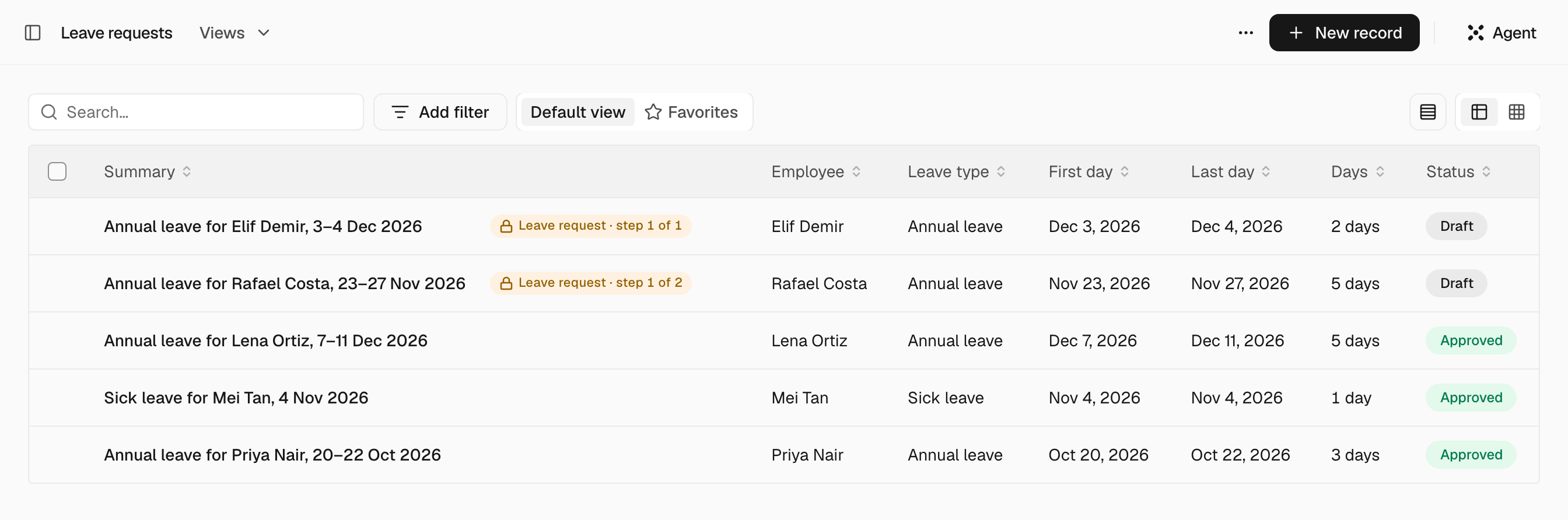
Open Leave requests and choose New record: the Leave type, First day, Last day, and Half day or a Reason if needed. Choose Submit. The working days are counted on the calendar of the employee's term, holidays left out, and written to Days.
Approve it#
A leave type with Requires approval on holds the request. The confirm button reads Send for approval, and the request waits for the employee's manager, then for the HR of the employing legal entity, in Approvals. It is never the requester or the employee the leave is for, whoever filed it. With Requires approval off, the leave is granted on submit.
Cancel it#
Choose Cancel leave on approved leave. The employee can until the leave's first day. After that, the HR of the employing legal entity, an Owner or an Admin. The days return to the balance and the people who approved it are told.
Note: The platform rule Leave decides these requests, and it cannot be switched off. You can tighten it: see Approval rules.
Settings#
| Setting | Where | What it does |
|---|---|---|
| Setup | Settings > People > Setup | Creates leave types, a calendar and a default policy for one legal entity. |
| What line managers read | Settings > People > Setup | Personal details stay hidden from line managers unless you turn a property on here. |
| Leave types | Settings > People > Leave types | Per type: Paid, Allowance (Accrues into a balance, Up to a cap per year, Up to a cap per occasion or No cap), Requires approval, Cap (days), Waiting months and Only after probation. |
| Leave policies | Settings > People > Leave policies | Per legal entity, the Entitlements: Leave type, Days per year, Accrual (Monthly or Annually, upfront) and Waiting months. Default for the entity is the one an employment falls back to. |
| Positions | Settings > People > Positions | The jobs a term names. The employee shows it as their job title. |
| Calendars | Settings > Organization > Calendars | The Working days, Hours per day and Holidays that leave is counted against. |
| HR | Settings > Organization > Legal entities | Open the entity and choose Add a person under HR. They read the entity's employee files and answer approval steps that ask its HR. With nobody added, only Owners and Admins see those files. |
Who sees what#
A person's file is as visible as their employment: the person, their managers, the HR of the legal entity, and Owners and Admins. A manager reads a report's work fields, not the personal ones, until you turn them on under What line managers read. A person's Name, Employee number and Linked user are written only by HR of the employer and by Owners and Admins.
The Agent#
- It reads Leave balances and the linked employee record without a card, within what the person asking may open.
- Setting up People, starting an employment and submitting a leave request each ask for a card, unless the mode is Full autonomy: see Autonomy.
- Its leave requests meet the same Leave rule as anyone's.
Limits#
- A request is refused, with the numbers, when the balance or cap is short, when it overlaps another of the person's requests, or when the person has no active employment.
- Unused days stay in the balance. There is no year-end carry-over cap.