Deals and pipelines
Work deals through a pipeline's stages, close them as won or lost, link their contacts, company and partner, and set the stages in Settings > Data > Pipelines.
Who can do this: Owners and Admins, or a role with Organization settings, switch Sales on and edit pipelines; a member works the deals their role lets them see and edit.
A deal is a sale you are working on. Sales moves it through the stages of a pipeline until it is won or lost, and starts its quote and invoice.
Turn it on#
Switch Sales on in Explore modules: see Turn modules on and off. Sales then adds Deals and Partners to the menu and a Sales section to Settings.
Work a deal#
Create the deal#
Open Deals and choose New record. In New deal, fill in Title; Value, Currency, Expected close date and the other properties can follow.
Add what you sell#
On the deal's Line items, add products. Once it has lines, the deal's Value is what they come to, less the deal's discount, and is no longer typed by hand.
Move it through the stages#
The stage track under the deal's header shows where it stands: choose a stage on it to move the deal there. A deal may go back a stage. Each stage carries a Win %, which the deal takes as its Probability; a value you type yourself is kept while the deal moves between open stages.
Close it#
Choose Mark won, check the Final value (it reads From line items when the lines decide it) and choose Mark won again. Or choose Mark as lost, pick a Lost reason if you want to, add a Note and choose Mark lost. The deal then reads Won or Lost, and Reopen brings it back.
A won deal marks every contact linked to it as Became a customer.
The board#
Choose Board on Deals to see one lane for each stage of the pipeline, and drag a card to move its deal. Calculate under a lane adds a figure such as a count or an average of a property. See Views.
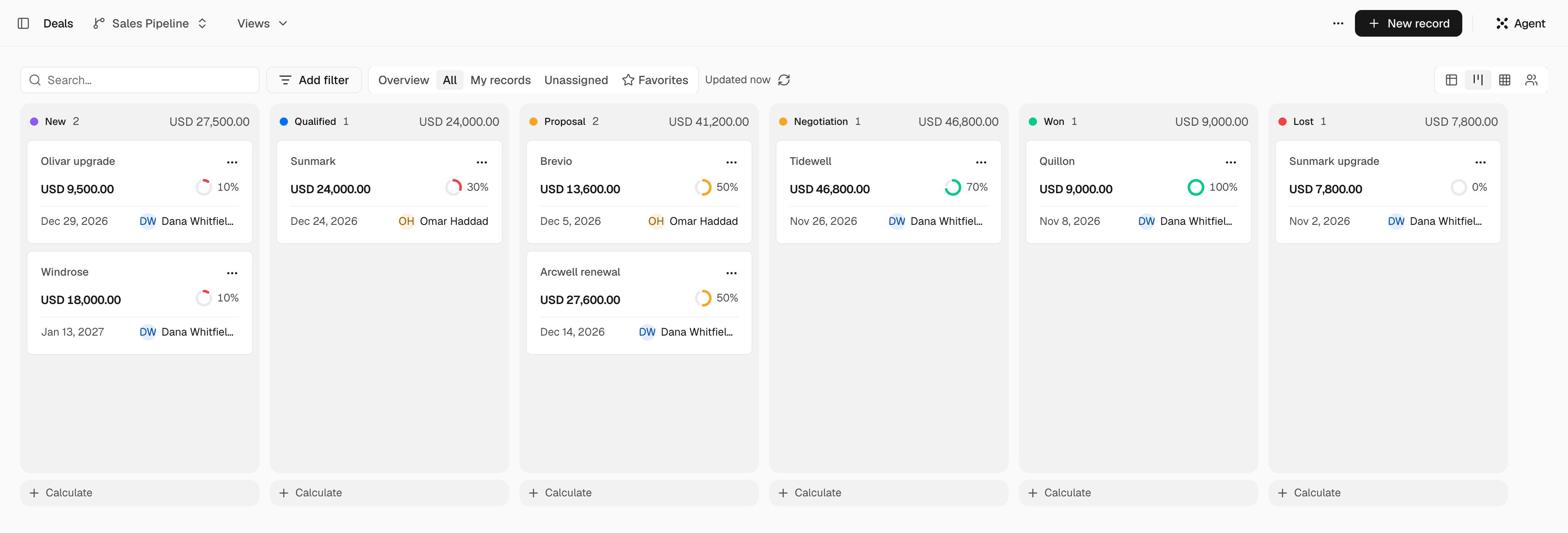
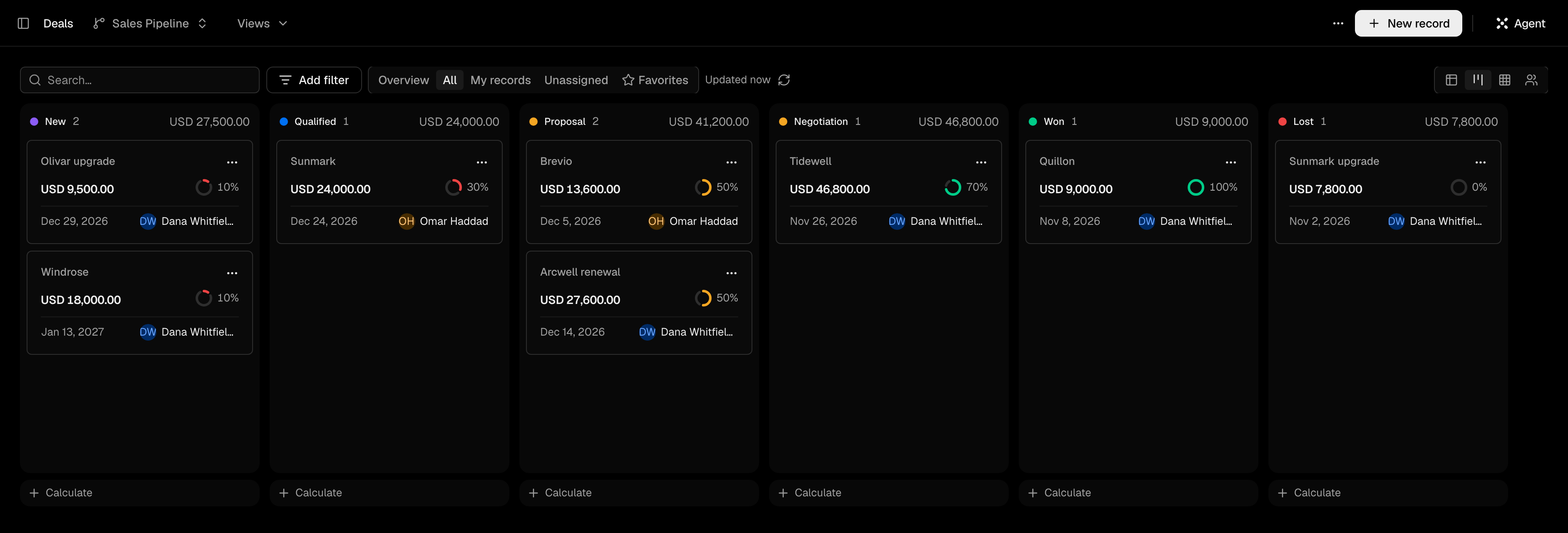
With more than one pipeline, the pipeline menu picks one or All pipelines, and Manage pipelines opens the settings.
Pipelines#
A new organization starts with a pipeline of six stages: New, Qualified, Proposal, Negotiation, Won and Lost. Change it, or add your own, in Settings > Data > Pipelines: choose the Object, then New pipeline.
| Setting | What it does |
|---|---|
| Pipeline name | What the pipeline is called in menus |
| Stages, Add stage | The lanes of the board, in order |
| Win % | The chance of winning a deal in that stage |
| Outcome | Open, Won or Lost: whether a deal in the stage counts as open, won or lost |
| Category | What the stage means: Not started, Active, Done, Canceled, Won or Lost. Outcome is the same setting for Won and Lost |
| Color | The stage's color |
| Make default | Makes this pipeline everyone's board; the dialog warns that it re-lanes every board |
The first pipeline is the default. Remove a stage and its deals keep it until you move them: the board shows them under the stage's name marked removed.
Contacts, company and partner#
A deal has one company and any number of contacts. Link them from the deal's Related blocks, or from the contact or company: see Relationships and Contacts and companies.
Each contact on a deal has a role. Primary is the person its quote and invoice are addressed to. Champion is the one who argues for you inside the account.
A partner is a record for a reseller or referrer, under Partners: Name, Tier (Strategic, Preferred or Standard), Status, Default margin %, Primary contact and Notes. A deal has one Partner. The partner adds up its Sourced deals and Sourced revenue, and can be linked to the Companies it reaches.
Quotes and invoices#
Create quote and Create invoice in the deal's menu start a draft from its line items: see Quotes and invoices. When the customer accepts a quote, the deal moves to the pipeline's first Won stage on its own. You may move it back, and an approval rule on that stage holds the move until it is approved.
Settings#
| Where | What it does |
|---|---|
| Settings > Sales > Setup | Lists what Sales needs and what is missing: Legal entity, Pipeline for deals, Document templates and Products and prices |
| Settings > Data > Pipelines | The stages above |
| Settings > Sales > Agent limits | Largest discount, in percent and Lowest price, in percent of the catalog price; an empty box is No limit |
What the Agent does#
The Agent finds deals, moves them between stages and starts a draft quote, a draft invoice or a project from a deal on its own. Saving or archiving a pipeline waits on a card for your approval.
Agent limits apply to anything an agent writes on a deal, a quote or an invoice, whether it is the Agent, a Mini or an AI step in a workflow: a discount or price outside them is refused, not held. A person is not bound by them.
Questions#
Who sees a deal? Deals start Private: the owner, their team and admins. Change it in Access.
Can I change a pipeline that has deals in it? Yes. Deals in a removed stage stay where they are until you move them.