Workflows
Set up steps that run on their own when a record changes, test them on a real record, and see what every run did and why one failed.
Availability: Available on every plan. An AI step spends AI credits; every other step spends none. Compare plans
Who can do this: Owners and Admins, or a role with Organization settings.
A workflow runs steps for you when something happens to a record, such as a deal created or won. Every change it makes shows in the record's history.
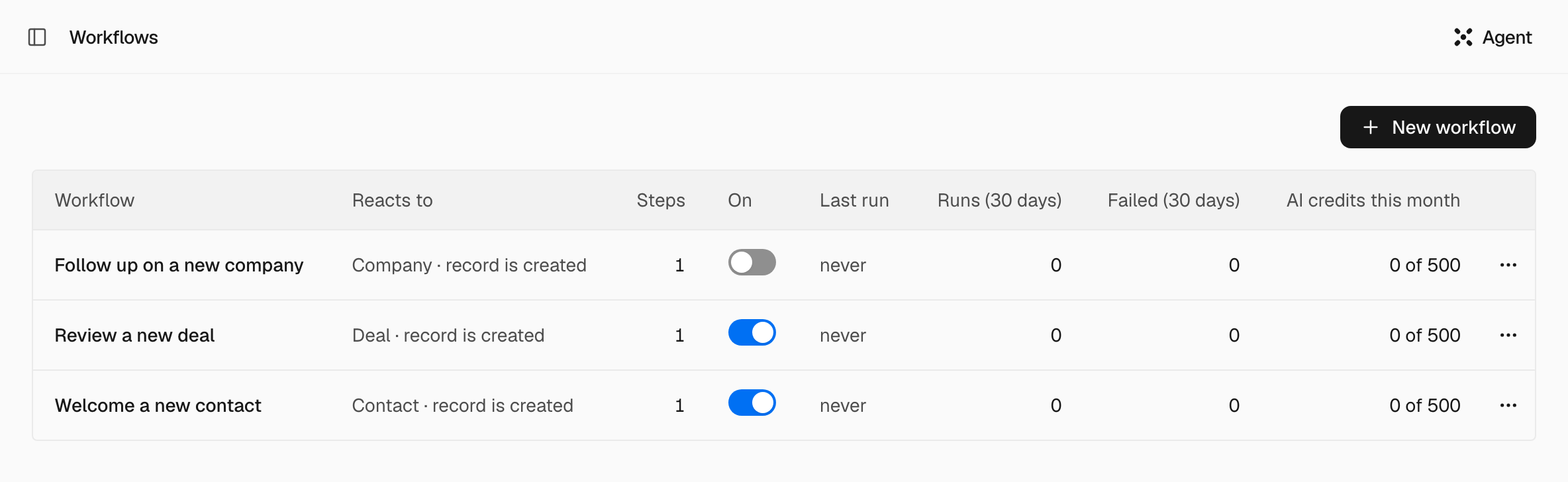
Build a workflow#
Start a new workflow#
Open Workflows and choose New workflow. Pick one of three starts:
- Describe it, the Agent drafts it: write what should happen, then Draft the workflow. The draft opens switched off and costs a few AI credits.
- Start from a template: grouped by job, such as Sales, Finance and Any record.
- Start blank: a trigger, and you add the steps.
Choose the trigger#
The trigger is the first step on the canvas. Choose the object the workflow runs on and its Event. For record updated, narrow it with When property changes (optional) and Changes to (optional).
Add steps#
Add steps with the + on the canvas. A Condition branches into true and false; a branch with nothing under it stops. To use a value from the record, type its property key in double braces, for example {{job_title}}.
Test it#
Choose Test, pick one of your records and read What would happen to it. Nothing is changed, no AI credits are used and nobody is notified.
Save and switch it on#
Choose Save. A new workflow is saved switched off: turn it on with its switch in the On column of the Workflows list.
Triggers#
| Trigger | Offered for |
|---|---|
| record created, record updated, record deleted | Every object |
| entered a list, left a list | Every object |
| A document step, such as Invoice issued, Quote accepted or Leave request approved | Objects with document steps |
| visited the website, submitted a form | Contacts |
| pace changed | Goals |
| due for review | Decisions |
| Run by another workflow | A workflow that another workflow's Run workflow step starts |
On a deleted record, steps can still read it and notify people, but a step that changes it fails.
Steps#
The step picker groups them as Route, Act, Wait and AI.
| Step | What it does |
|---|---|
| Condition | Branch on a property: true goes one way, false the other. It uses the same filters as views. |
| Update property | Set a property on this record |
| Create record | Create a related record |
| Add to list | Put this record on a list |
| Archive record | Move this record to the recycle bin |
| Notify a person | Tell The record's owner or The organization's admins, with a Headline and an optional detail, in their bell |
| Run workflow | Run another workflow on this record |
| Other action | Any other action SalexHub has, except those only a person may take |
| Wait | Pause for a while (15 minutes to 1 week, or custom) or until a date on the record, up to 365 days |
| AI step | Ask AI a question and save the answer to a property |
| End | Stop this path here |
A step's When this step runs says Automatically or Never (people only). A run that reaches a people-only step stops there.
The AI step#
Fill in Ask, choose the property under Write the answer to, and add Extra instructions (optional). Under Actions AI can take (optional) you may give it actions; only actions that need no approval are offered. With none, it only writes its answer.
Its limits:
- If the record or anything the step reads came from outside your organization, such as an email, a form or a web page, the changes its model tries to make are not made. The answer is still written to its property.
- After outside text, it cannot change an email address or a phone number.
- It never writes bank details or a payment.
- A test run does not ask the model, so the steps after it read the property as it is now.
- Only AI steps spend AI credits, within the run's Max AI credits per run.
Drafts and versions#
While a workflow is off, Save puts your changes live. Once it is on, the button reads Save draft: your edits wait under Unpublished changes until you Publish or Discard them, and the live version keeps running. Version history lists every published version; Restore makes an old one live again as a new version.
A workflow acts with the rights of the person who published the version that runs, and only on records they can open. A step that sends, issues or archives acts only in a version a person published by hand, so a workflow the Agent drafted waits for you to publish it.
Duplicate makes a copy that is off. Delete moves the workflow to the archived workflows, with its versions and runs; a restored one comes back switched off.
Runs#
Runs lists every run of a workflow with its record, status, steps and AI credits, and a chart of runs per day. Filter by Status or Record. Trace run replays a run on the canvas: which steps ran, which branch was taken, what failed.
The Workflows list shows each workflow's Last run, Runs (30 days) and Failed (30 days), and AI credits this month to people with the billing right.
A step that an approval rule holds waits in Approvals as Awaiting approval, and the run stops there. Approving performs that step; the steps after it do not run.
When a run fails#
- Retry: on a failed run, Run actions offers Retry from the failed step, which does not repeat the steps before it, or Run again from the start on the live version.
- Alerts: the person who published the workflow gets a bell notice on the day's first failure, and an email the next morning lists yesterday's failures.
- Needs attention: above the Workflows list, the workflows that failed today and those switched off.
- Switch-off: after 20 failed runs in a row, SalexHub switches the workflow off and marks it Switched off after failures. Fix the failing step, then switch it on; the count starts again.
A failed run never undoes the change that started it.
Limits of a run#
| Limit | Default | Highest |
|---|---|---|
| Max steps per run, across every workflow it runs in turn | 100 | 1,000 |
| Max AI credits per run | 50 | 10,000 |
A run that reaches either stops and says so. A change a workflow makes never starts another workflow; only a Run workflow step does, and a workflow cannot start itself.
Questions#
Can the Agent build a workflow? Yes. Ask it in the chat, or use Describe it, the Agent drafts it. Saving, publishing or switching on a workflow is a card you approve, whatever the Agent may do on its own elsewhere.
Can a workflow run every Monday? No, a workflow starts when something happens. For a job on the clock, make a Mini.